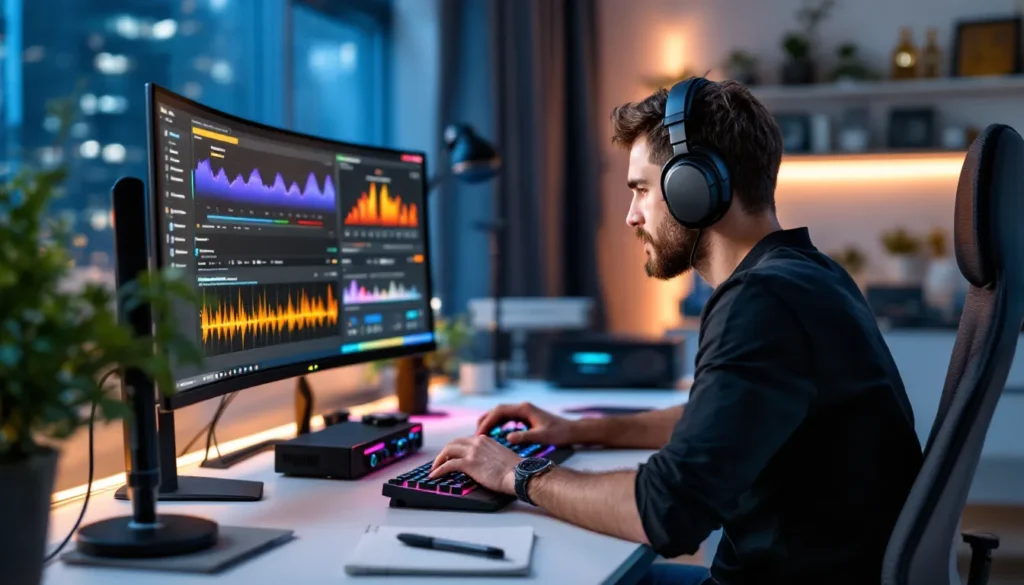
Sound is half the battle in Warzone. You can have the sharpest aim and fastest reflexes, but if you can’t hear footsteps climbing the stairwell behind you or pinpoint where that sniper shot came from, you’re already at a disadvantage. Most players spend hours tweaking their loadouts and sensitivity but leave their audio settings at default, a mistake that costs gunfights.
Warzone’s audio engine has evolved significantly since the game’s launch, especially with the updates in 2024 and 2025 that overhauled spatial audio processing. Getting your audio dialed in isn’t just about turning the volume up. It’s about understanding how the game processes sound, choosing the right mix preset, and configuring your system to highlight critical audio cues like enemy movement, gunfire direction, and vehicle approach.
This guide breaks down the best audio settings for Warzone in 2026, covering everything from in-game tweaks to platform-specific configurations and external software options. Whether you’re grinding ranked on PC or playing casually on console, these settings will give you the edge you need to hear enemies before they hear you.
Key Takeaways
- Best audio settings for Warzone prioritize the Boost High preset and stereo headphones over virtual surround to maximize directional clarity on footsteps and gunfire.
- Disable all in-game music and unnecessary enhancements, keeping Sound Effects at 100% and master volume between 70–85% to focus on competitive audio cues without fatigue.
- Use platform-specific spatial audio like PS5’s Tempest 3D AudioTech or Xbox’s Windows Sonic, and disable external surround virtualizations to avoid conflicting audio processing layers.
- Wired headphones with 40–50mm drivers and good frequency response in the 100Hz–8kHz range deliver superior positional accuracy compared to speakers or wireless connections.
- Customize EQ settings by boosting 1–8kHz frequencies to emphasize footsteps and tactical sounds while reducing low-end rumble below 100Hz for maximum clarity.
- Test audio settings in the pre-game lobby and adjust configurations per game mode, using slightly different master volumes for longer Battle Royale matches versus faster Resurgence modes.
Why Audio Settings Matter in Warzone
Audio is the most underrated competitive advantage in Warzone. While visual clarity gets plenty of attention, FOV sliders, graphics settings, monitor refresh rates, sound design is where awareness really happens. In a game where third-party ambushes and silent rotations can end your match instantly, being able to accurately identify enemy positions through audio is essential.
The difference between average and optimized audio settings can mean hearing an enemy’s armor plates being applied two buildings over or completely missing footsteps until it’s too late. Warzone’s audio provides directional cues, distance information, and environmental context that no visual indicator can replicate. Gunshots echo differently in open fields versus urban areas. Footsteps change texture based on surface type. Vehicle engines give away rotations long before they appear on your screen.
Competitive players treat audio as seriously as they treat weapon meta. Pro teams spend time in custom matches testing audio positioning, identifying dead zones where sound doesn’t travel correctly, and fine-tuning their settings to maximize clarity. The goal isn’t just louder sound, it’s clearer, more directional audio that helps you make split-second decisions. When two players of equal skill meet, the one who heard the other first usually walks away with the kill.
Understanding Warzone’s Audio Engine
Warzone uses a proprietary audio engine that’s been refined across multiple iterations of the game. Understanding how it processes sound helps you make smarter configuration choices.
How Spatial Audio Works in Warzone
Spatial audio in Warzone creates a three-dimensional sound field that simulates how sound travels in real environments. The engine calculates sound sources relative to your position and outputs directional cues through your headset or speakers. This includes vertical audio, which helps distinguish between enemies above or below you, critical in multi-story buildings.
The game uses HRTF (Head-Related Transfer Function) processing when spatial audio modes are enabled. This technology simulates how your ears naturally perceive sound direction based on subtle timing and volume differences between your left and right ear. When properly configured, you should be able to close your eyes and point toward a gunshot or footstep with surprising accuracy.
Warzone’s 2025 audio update improved vertical sound staging significantly. Players reported better distinction between floors in buildings, which had been a long-standing complaint. The engine now factors in material density and environmental acoustics more accurately, so concrete structures sound different from wooden buildings.
The Difference Between Stereo and Surround Sound
Stereo uses two channels, left and right, to create directional audio. Surround sound systems use multiple channels (5.1, 7.1, or virtual surround) to position audio around you. Here’s where it gets tricky: Warzone’s spatial audio works best with stereo headphones, not surround.
Virtual surround sound attempts to simulate multiple speakers through two drivers, but it often muddies positional accuracy in Warzone. The game’s HRTF processing is optimized for stereo output. Adding virtual surround on top creates a second layer of processing that can actually make footsteps harder to pinpoint.
Most competitive gaming headsets designed for FPS games output in stereo specifically because binaural audio through two drivers provides better directional precision than virtual 7.1. Save surround sound for single-player campaigns where immersion matters more than competitive precision.
Optimal In-Game Audio Settings
Warzone’s in-game audio menu offers several critical settings that dramatically affect what you hear and how clearly you hear it. Here’s how to configure them for competitive advantage.
Audio Mix Presets Explained
Warzone offers multiple audio mix presets, each tuning different sound categories differently. As of 2026, these are the primary options:
Boost Low emphasizes bass frequencies, making explosions and vehicle engines more prominent. It’s cinematic but not ideal for competitive play since it can drown out subtle cues like distant footsteps.
Boost High amplifies treble frequencies where footsteps, reloads, and armor plate sounds sit. This is the most popular preset among competitive players because it makes crucial gameplay sounds more distinct. Footsteps become crisper and easier to locate directionally.
Midnight Mode compresses dynamic range, reducing the gap between quiet and loud sounds. This prevents explosions from blowing out your ears while making quiet sounds more audible. It’s excellent for late-night sessions or if you play in shared spaces, but some players find it makes everything sound flat and harder to judge distance.
Headphones Bass Boost does exactly what it says, cranks low-end frequencies. Skip this unless you enjoy missing footsteps behind the rumble of your own equipment.
For most players, Boost High is the optimal choice. It prioritizes the frequency ranges where enemy audio cues exist. Combined with decent headphones, it provides the clearest positional information.
Master Volume and Individual Sound Channels
Master Volume should sit between 70-85% depending on your headset’s sensitivity. Too low and you’ll miss distant cues: too high and you risk audio fatigue and potential hearing damage during extended sessions.
Warzone allows independent control over specific sound categories:
- Sound Effects (SFX): This controls gameplay sounds, gunfire, footsteps, equipment. Keep this at 100%. These are the sounds you need to hear.
- Music: Set to 0%. In-game music provides zero competitive value and masks important audio cues. Even menu music can be distracting between matches.
- Dialogue: Keep at 50-70%. Operator callouts can provide useful information (“Enemy dropping in.”), but they’re less critical than SFX.
- Game Music: Again, 0%. No reason to have this enabled in competitive modes.
- Hit Marker Sound Effects: Personal preference, but keeping these at 75-100% provides satisfying feedback that you’re landing shots.
Many players prefer to keep game elements that provide tactical information (SFX, dialogue) high while muting everything else. The less audio clutter, the easier it is to focus on relevant sounds.
Mono Audio vs. Stereo: Which Should You Choose?
Unless you have a specific hearing impairment that benefits from mono audio, always choose stereo. Mono audio outputs identical sound to both ears, completely eliminating directional information. You’ll hear the footsteps but have no idea which direction they’re coming from.
Stereo preserves the left-right directional cues that Warzone’s spatial audio engine creates. This is non-negotiable for competitive play. The only scenario where mono makes sense is for players with single-sided deafness who can’t perceive stereo separation anyway.
Best Platform-Specific Audio Settings
Platform configuration can be just as important as in-game settings. Here’s how to optimize audio on each platform.
PC Audio Configuration
PC offers the most granular control over audio, but that also means more opportunities to misconfigure things.
Start with Windows Sound Settings. Right-click the speaker icon in your taskbar and select “Sound settings.” Ensure your headset is set as the default output device. Under “Device properties,” disable all “Enhancements” or “Sound effects.” These Windows processing features were designed for music and movies, not competitive gaming, and they interfere with Warzone’s spatial audio.
In “Advanced” settings, set your output format to “16 bit, 48000 Hz (DVD Quality)” or “24 bit, 48000 Hz (Studio Quality).” Higher sample rates don’t improve gaming audio and can sometimes introduce latency.
If you’re using a dedicated sound card or DAC/amp, check its control panel. Disable any virtual surround features (Razer Surround, Sonic Suite, etc.). These conflict with Warzone’s built-in spatial processing. Keep the signal path clean: game → stereo output → headphones. No extra processing.
For players focused on both performance optimization like frame rates and audio clarity, ensure your audio drivers are current. Outdated Realtek or Creative drivers can introduce crackling, latency, or dropouts.
Console Audio Setup (PlayStation and Xbox)
Console audio configuration is simpler but still requires attention.
PlayStation 5: Navigate to Settings → Sound → Audio Output. Set “Output Device” to your headset. Under “Headphones,” select “3D Audio.” PS5’s Tempest 3D AudioTech works excellently with Warzone’s spatial audio. Adjust “3D Audio” settings by running the configuration tool that tests which HRTF profile fits your ears best, this personalizes spatial accuracy.
Set “Chat Audio” to prioritize game audio if you’re in party chat. You want callouts from teammates, but they shouldn’t overpower footsteps.
**Xbox Series X
|
S:** Go to Settings → General → Volume & audio output → Headset audio. Set “Headset format” to “Windows Sonic for Headphones” or “Dolby Atmos for Headphones” if you have it enabled. Windows Sonic is free and works well with Warzone: Dolby Atmos requires a license but offers slightly better spatial precision for some users.
Disable “Auto mute” to prevent your mic from muting during gameplay. Set “Party chat output” to “Headset” to keep all audio in one place.
Both consoles support USB headsets, optical connections, and 3.5mm jacks. For competitive play, wired connections are preferable to Bluetooth, which introduces latency, even small delays between seeing and hearing an enemy can cost gunfights.
Headset vs. Speakers: What Works Best
The headset versus speakers debate has a clear winner for competitive Warzone: headsets. Here’s why.
Speakers, even high-quality ones, can’t provide the same positional accuracy as headphones placed directly on your ears. Room acoustics, speaker placement, and environmental noise all interfere with directional cues. A footstep that would be immediately identifiable in headphones becomes ambiguous through speakers.
Headphones create an isolated audio environment where Warzone’s spatial processing can work as designed. They block external distractions and deliver sound directly to your ears without room reflections or interference. For serious play, it’s not even close, headphones win.
That said, if you’re playing casually or prefer speakers for comfort during long sessions, position them symmetrically at ear level, angled toward your listening position. High-quality stereo speakers still provide better directional information than cheap headphones.
Recommended Headset Features for Competitive Play
Not all headsets are created equal. For Warzone, prioritize these features:
Open-back vs. Closed-back: Open-back headphones offer wider soundstage and more natural audio, making positional cues feel more spacious. Closed-back provides better isolation and punchier bass. For Warzone specifically, closed-back is usually preferred because it blocks external noise and keeps you focused.
Driver Size: 40mm to 50mm drivers are the sweet spot for gaming. Larger drivers can produce better bass response and overall volume without distortion.
Frequency Response: Look for headsets with good response in the 100Hz-8kHz range where game audio cues live. Marketing specs like “20Hz-20kHz” don’t tell the whole story, what matters is how balanced the response curve is.
Impedance: Lower impedance (32-64 ohms) headphones are easier to drive from consoles and motherboard audio. Higher impedance models may require a dedicated amp but can offer better sound quality if you’re willing to invest.
Wired vs. Wireless: Wired eliminates latency and battery concerns. Wireless offers convenience. For competitive play, wired is recommended. If you go wireless, ensure it’s a 2.4GHz dedicated wireless connection, not Bluetooth.
Headsets designed specifically for competitive FPS, like offerings frequently reviewed on professional gaming gear sites, tend to prioritize clarity and positional audio over bass-heavy “gamer” sound signatures. They may sound less exciting for music but perform better for hearing footsteps.
External Audio Enhancements and Software
Beyond in-game settings, external tools can refine your audio further. Use them carefully, some help, others hurt.
Equalizer Settings for Maximum Clarity
Equalizers let you adjust specific frequency ranges. For Warzone, the goal is emphasizing footstep and movement frequencies while reducing low-end rumble.
Here’s a general EQ profile that works for most headsets:
- 60Hz-100Hz: -3dB to -5dB (reduces explosion rumble and bass bloat)
- 200Hz-500Hz: 0dB (neutral, this is where some environmental sounds sit)
- 1kHz-3kHz: +2dB to +4dB (boosts footsteps, reloads, armor plates)
- 4kHz-8kHz: +3dB to +5dB (highlights high-detail cues, improves clarity)
- 10kHz+: 0dB to +2dB (adds air and spatial detail without harshness)
These are starting points. Every headset has a different baseline response, so adjust based on what you hear. The goal is making footsteps and tactical sounds more prominent without creating ear fatigue from excessive treble.
Many gaming headsets include companion software with EQ presets. Razer Synapse, SteelSeries Engine, and Logitech G Hub all offer “FPS” or “Competitive” presets that apply similar boosts. Test them against manual tuning.
Free EQ software like Equalizer APO (PC) or built-in system EQs (console) work fine. Don’t feel pressured to buy expensive software, results come from tuning, not price.
Third-Party Audio Software Worth Considering
A few external tools can enhance Warzone audio, but proceed with caution.
Dolby Atmos for Headphones (PC, Xbox): Available for a one-time license fee, Dolby Atmos processes spatial audio in a way that some players find more accurate than native Windows Sonic. It’s subjective, some swear by it, others notice no difference. The trial period lets you test before committing.
DTS Headphone:X (PC, Xbox): Similar to Dolby Atmos but using DTS processing. Again, subjective. Some find it creates better vertical audio separation in Warzone.
Voicemeeter Banana (PC): Advanced audio mixing software that lets you route and compress audio channels independently. It’s powerful but has a learning curve. Overkill for most players, but streamers and advanced users appreciate the control.
Peace Equalizer (PC): GUI for Equalizer APO that makes EQ adjustments more user-friendly. Highly recommended for PC players who want to tune without diving into config files.
Avoid software that promises “enhanced 7.1 surround” or “tactical audio boosts” from no-name companies. They’re usually repackaged compression or EQ that you can do yourself for free, and they often introduce artifacts or latency.
When considering these tools, understanding how audio positioning affects gameplay can help you evaluate whether external software actually improves your performance or just adds placebo processing.
Common Audio Mistakes to Avoid
Even experienced players make these audio configuration mistakes that sabotage their performance.
Stacking Multiple Surround Virtualizations: Using Windows Sonic + headset software surround + in-game spatial audio creates three layers of processing fighting each other. The result is mushy, imprecise audio. Pick one spatial audio solution, preferably the game’s built-in system, and disable everything else.
Volume Too High: Cranking volume to max doesn’t improve awareness: it causes ear fatigue, makes it harder to judge distance, and can damage your hearing. If you find yourself constantly lowering volume mid-session, your baseline is too high.
Ignoring Audio Balance in Loadouts: Some weapons are significantly louder than others, masking environmental sounds when you fire. Suppressors reduce your weapon’s audio signature, making it easier to hear enemies between shots. This is a tactical consideration, not just stealth. Players with optimized loadouts often choose suppressors partly for audio clarity during firefights.
Using Music or Discord at Full Volume: Voice chat should be audible but not overpowering. Set Discord or party chat 15-20% lower than game audio so callouts don’t mask footsteps. In-game music should stay off entirely.
Not Testing Settings in Pre-Game Lobby: The pre-game island is perfect for audio testing. Listen to nearby players’ footsteps, gunfire direction, and parachute audio. If something sounds off, you have time to adjust before dropping in.
Bluetooth Headsets for Competitive Play: Bluetooth introduces 100-200ms of latency. That’s the difference between hearing a footstep and seeing the enemy simultaneously or hearing it after they’ve already spotted you. For casual play it’s fine, but ranked or tournament settings demand wired connections.
Neglecting Firmware Updates: Gaming headsets receive firmware updates that can improve audio processing, fix bugs, or add features. Check manufacturer sites quarterly, especially after major Warzone updates that might affect compatibility.
Fine-Tuning Your Settings for Different Game Modes
Different Warzone modes emphasize different audio priorities. Tailoring settings to mode can provide additional edge.
Battle Royale Audio Priorities
Battle Royale demands maximum audio awareness. Matches last 20-30 minutes, rotations are slow and deliberate, and third parties are constant threats. Audio configuration should prioritize:
Long-Range Directional Accuracy: You need to identify sniper fire direction from 200+ meters. Boost High preset excels here, making distant gunshots clearer and more directional.
Environmental Audio Cues: Vehicle engines, parachutes, and supply boxes give away enemy positions long before visual contact. Keep environmental audio at full strength.
Building Audio Nuance: Most final circles involve building-to-building combat. Distinguishing between same-floor footsteps and floor-above movement is critical. Enable platform-specific 3D audio (Tempest on PS5, Atmos/Sonic on Xbox/PC) for better vertical staging.
Consider slightly higher master volume for Battle Royale since you’re often listening for subtle distant cues. Just be prepared to lower it if you get into close-quarters fighting where everything’s already loud.
Resurgence and Plunder Audio Adjustments
Resurgence and Plunder are faster, more chaotic modes with constant respawns and aggressive play. Audio priorities shift:
Close-Range Clarity Over Distance: You’re fighting in tight spaces more often. Footsteps within 20 meters matter more than hearing distant gunfights. Keep SFX at 100% but consider Midnight Mode preset if you find the constant explosions and gunfire fatiguing.
Reduced Dialogue Volume: These modes generate more operator callouts due to higher action density. If you’re finding callouts distracting, lower dialogue to 40-50%.
Slightly Lower Master Volume: The audio intensity in Resurgence can be overwhelming. Dropping master volume 10-15% compared to your Battle Royale setting reduces fatigue during long sessions without sacrificing important close-range cues.
Many players maintain two different configurations saved in their settings: one for traditional Battle Royale, one for respawn modes. Adjusting takes 30 seconds between modes but the difference in comfort and performance is noticeable.
For those exploring settings across game features, knowing how to manage communication features can also help reduce audio clutter in specific modes where proximity chat adds unnecessary noise.
Conclusion
Optimizing audio settings in Warzone isn’t about finding one magic configuration, it’s about understanding how the game’s audio engine works and tailoring settings to your hardware, platform, and playstyle. The fundamentals remain consistent: use stereo over virtual surround, prioritize the Boost High preset for competitive play, eliminate unnecessary audio processing, and invest in decent headphones if you’re serious about performance.
Start with the baseline settings covered here, then fine-tune based on your own hearing and preferences. Spend a few matches actively listening to how your changes affect footstep clarity, gunshot direction, and environmental cues. The goal is audio that gives you information, clear, directional, and fatigue-free even during marathon sessions.
Warzone’s meta shifts with every season, but audio fundamentals stay remarkably stable. Master these settings now and you’ll carry that advantage into every update, every mode, and every gunfight. Sound is information, and information wins matches.
About The Author